External Webcam Setup Guide for Android Users
Published: 20 Feb 2026
Tired of blurry, pixelated video calls on your Android phone? It’s frustrating, especially when you need clear and high-quality video for important meetings or content creation. The solution? Using an external webcam!
In this guide, we’ll show you exactly how to use an external webcam on your Android phone to improve your video quality and enhance your online experience. So, let’s dive in
How to Set Up an External Webcam on Your Android Phone
Setting up an external webcam on your Android phone is a simple process. Let’s go step by step.
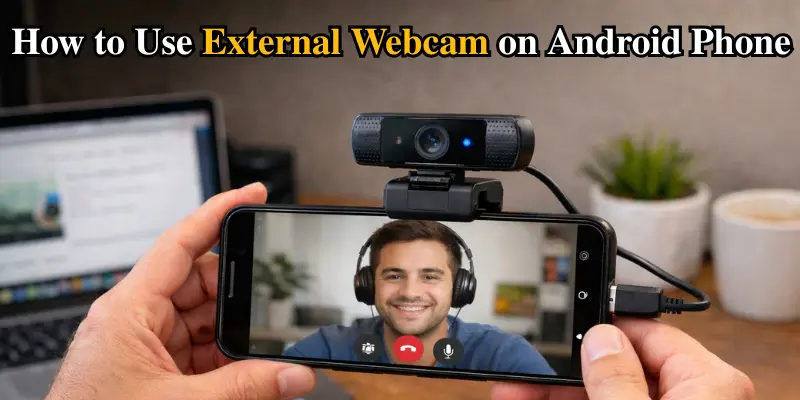
Step 1: Check if Your Phone Supports USB OTG
Before anything else, you need to check if your Android phone supports USB OTG (On-The-Go). USB OTG is what allows your phone to connect to external devices, like a webcam. The good news? Most modern Android phones support it, but it’s always a good idea to double-check.
How to check:
- Download a free app like USB OTG Checker from the Google Play Store.
- Run the app to confirm if your phone supports USB OTG.
Once confirmed, you’re ready to move on!
Step 2: Get a USB OTG Adapter
Now that you know your phone is ready, you’ll need a USB OTG adapter. This small and affordable device lets you connect your webcam to your phone’s charging port.
- Where to buy: USB OTG adapters are widely available online and in electronics stores. They’re usually very affordable (less than $10).
Step 3: Connect the Webcam
Next, plug your USB OTG adapter into your phone and connect your external webcam to the other end of the adapter. After a few seconds, your phone should automatically detect the webcam.
If you don’t see anything happening, no worries—sometimes a quick restart of your phone or re-plugging the devices fixes this.
Step 4: Install the Webcam App
For your phone to recognize the webcam, you’ll need to install an app like USB Camera or DroidCam from the Google Play Store. These apps let your phone interface with the external webcam.
What to do:
- Download the USB Camera or DroidCam app from the Play Store.
- Open the app, and you should immediately see the feed from your external webcam. If it doesn’t appear immediately, don’t worry—simply select the webcam as the video source from within the app’s settings.
And just like that, you’ve set up your external webcam on your Android phone!
Troubleshooting External Webcam Issues on Android
Even with the simplest of setups, sometimes things don’t go as smoothly as expected. If you run into any problems, here are a few common issues and easy fixes:
1. Webcam Not Detected
If your Android phone isn’t detecting the external webcam, follow these fixes:
- Check your connections: Ensure both the USB OTG adapter and the webcam are securely plugged into your phone.
- Try a different adapter: If the current adapter isn’t working, the issue might lie with the adapter itself. Try using a different one.
- Restart your phone: A simple restart can help your phone recognize the external webcam.
2. Poor Video Quality
If the video quality is blurry or pixelated, try these solutions:
- Adjust the resolution: Open the app settings and increase the resolution for a clearer image.
- Improve lighting: Ensure you’re in a well-lit area to enhance the webcam’s performance.
- Check the camera lens: Clean the webcam lens to remove any dust or smudges that could be affecting video quality.
3. Lagging or Freezing Video
If your video is lagging or freezing, follow these steps:
- Close background apps: Free up your phone’s resources by closing any unnecessary apps running in the background.
- Check USB connection: Ensure the adapter and webcam are securely connected. A loose connection can cause lag.
- Use a lower resolution: Reducing the resolution in the app settings may help improve performance.
Best External Webcams for Android Phones
Not all webcams are created equal, so it’s important to choose the right one for your needs. Here are some great options that work well with Android phones:
- Logitech C920 HD Pro Webcam: Known for its excellent video quality and reliable performance, this webcam works well with Android phones and delivers crisp, clear video for calls and streaming.
- Anker PowerConf C200 2K Webcam: A solid mid‑range option with sharp 2K resolution and good autofocus, ideal for better video quality during meetings and online sessions.
- Insta360 Link 2C 4K Webcam: A premium choice with 4K video quality and advanced features, perfect for content creators, livestreamers, and professional use.
Conclusion
Using an external webcam with your Android phone is an easy way to improve your video quality. Whether for work, streaming, or online learning, a better camera makes a noticeable difference. With just a USB OTG adapter and the right app, you can easily turn your phone into a high-quality video device.
Don’t suffer with blurry or pixelated video—upgrade to an external webcam and enjoy a sharper, more professional look in all your video calls and recordings.
FAQs (Frequently Asked Questions)
Here are answers to some of the most common questions about using an external webcam on android phone.
You can check if your phone supports USB OTG by using a free app like USB OTG Checker from the Google Play Store. After downloading and running the app, it will tell you if your phone is compatible. If it is, you’re good to go!
A USB OTG adapter is a small device that allows you to connect external devices, like webcams, to your phone’s charging port. You can find them easily online or in electronics stores for a very affordable price (usually under $10). It’s a simple but essential tool for connecting a webcam.
Yes, you can use your Android phone as a webcam for your computer using apps like DroidCam or IP Webcam. These apps let your phone connect to your computer via USB or Wi-Fi and act as a webcam, providing a clear and affordable alternative to traditional webcams.
External webcams may not be recognized by all apps on Android, especially social media apps like Instagram or Facebook, which typically only recognize the built-in camera. However, video calling apps like Skype or Zoom should work fine.
Yes, using an external webcam can impact your phone’s battery life, especially if the webcam requires a lot of power. Make sure your phone is charged or connected to a power source for extended use.

- Be Respectful
- Stay Relevant
- Stay Positive
- True Feedback
- Encourage Discussion
- Avoid Spamming
- No Fake News
- Don't Copy-Paste
- No Personal Attacks
- Be Respectful
- Stay Relevant
- Stay Positive
- True Feedback
- Encourage Discussion
- Avoid Spamming
- No Fake News
- Don't Copy-Paste
- No Personal Attacks
