How to Use an External Webcam on iPhone: Step-by-Step Guide
Published: 22 Apr 2026
Are you tired of low-quality video on your iPhone for Zoom meetings, online classes, or streaming? While iPhones have excellent built-in cameras, using an external webcam can significantly improve video quality.
In this guide, we’ll show you exactly how to use an external webcam on your iPhone, including the right adapters, apps, and practical tips for the best experience. So, let’s dive in.
Why Use an External Webcam on iPhone?
Many people ask why they need an additional webcam when iPhone cameras are already good. Here’s why:
- Higher Video Quality: External webcams often have better resolution and low-light performance.
- Professional Calls: Make your video calls stand out with sharper, clearer video.
- Streaming & Content Creation: Perfect for live streaming or creating YouTube or TikTok videos.
Whether you’re attending online lectures or hosting webinars, an external webcam can elevate your iPhone’s video output.
How to Set Up an External Webcam on iPhone
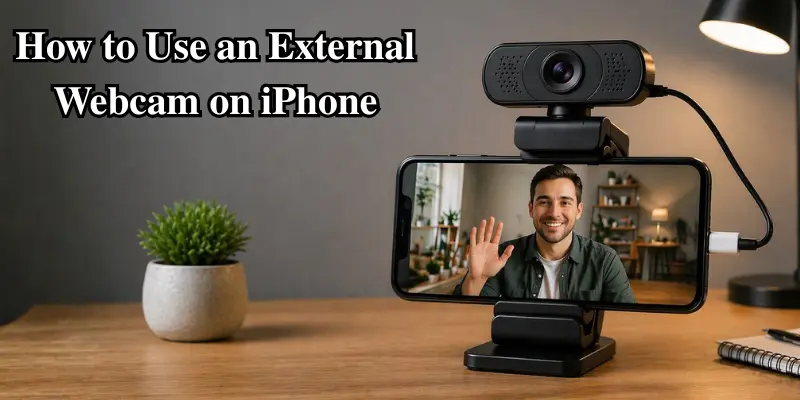
Setting up an external webcam on your iPhone may seem tricky at first, but with the right steps, adapters, and apps, you can achieve professional-quality video easily. Here are the steps to help you get started :
Step 1: Check iPhone Compatibility
Before purchasing an external webcam, make sure your iPhone is ready:
- iOS Version: Make sure your iPhone is running iOS 16 or later for better app support.
- Ports: Newer iPhones have USB-C (iPhone 15+) while older models use Lightning.
- Adapters: You’ll likely need a Lightning-to-USB or USB-C-to-USB adapter for connecting the webcam.
| Tip: |
|---|
Using the wrong adapter may cause connectivity issues, so check that the adapter supports data transfer, not just charging. |
Step 2: Choose the Right External Webcam
Not all webcams are compatible with iPhones. Look for:
- UVC Webcams: Recognized by most apps, ensuring smooth performance.
- Popular Options: Logitech StreamCam, Razer Kiyo, or generic UVC webcams.
| Pro Tip: |
|---|
Check reviews and specifications to ensure your webcam supports the resolution and frame rate you want. |
Step 3: Required Adapters for Connection
Depending on your iPhone model, you may need:
- Lightning-to-USB Adapter: For older iPhones.
- USB-C-to-USB Adapter: For newer iPhones with USB-C.
Important: Adapters that only charge the device won’t work. Make sure your adapter supports data transfer for video input.
Step 4: Install and Use Compatible Apps
Most iPhones do not support external webcams directly in apps like Zoom or FaceTime, so you may need a third-party app to make the setup work.
- EpocCam – works for Zoom, Teams, and OBS Studio.
- Camo – offers high-quality video with adjustable resolution and filters.
- Reincubate Camo Studio – ideal for streaming and professional video calls.
Steps:
- Download the app on your iPhone.
- Connect your webcam using the adapter.
- Open the app and select your external webcam as the input source.
- Check if the video feed appears correctly and adjust the focus, angle, and position.
Step 5: Use Your Webcam in Video Apps
Now that your webcam is set up and working, you can use it in your video calls or streaming apps.
Steps:
- Open apps like Zoom, Microsoft Teams, or Google Meet.
- Go to video settings.
- Select the third-party app (EpocCam, Camo, etc.) as your camera source.
- Start your meeting, class, or stream.
Quick Tip: Do a quick test call before going live to make sure everything looks clear and professional.
Troubleshooting External Webcam Issues on iPhone
If your external webcam is connected but still not working as expected, a few simple checks can help you fix the problem quickly.
- Webcam Not Detected: Make sure your adapter supports data transfer, not just charging. Reconnect the webcam properly.
- No Video Feed: Open your app (Camo or EpocCam) and check if the webcam is selected as the input source.
- Poor Video Quality: Improve lighting and adjust resolution and frame rate in the app settings.
- App Not Working: Update the app and your iPhone’s iOS to fix bugs and compatibility issues.
- Connection Issues: Try a different adapter or cable to check if the hardware is causing the problem.
Tips for Best Performance
To get the best results from your external webcam on iPhone, a few simple tips can make a big difference in video quality and overall performance.
- Use good lighting: A well-lit space helps your video look clearer and sharper.
- Keep the webcam stable: Use a stand or tripod to avoid shaky video.
- Close background apps: This can improve performance and reduce lag.
- Check your internet connection: A stable connection helps maintain smooth video calls and streaming.
- Keep your iPhone charged: Long calls or streams can drain the battery quickly.
Conclusion
Using an external webcam on your iPhone is easier than most people think. While iPhones do not directly support most USB webcams, you can still use them with the help of third-party apps and adapters. Whether you’re a student, professional, or content creator, following these steps will improve your video calls, online classes, and streaming setup.
Try this setup today, share your experience in the comments, and check out our recommended webcams and adapters list for the best results!
Frequently Asked Questions (FAQs)
Here are answers to some of the most common questions about how to use an external webcam on an iPhone:
No, not all webcams are compatible with iPhones. Look for webcams that support UVC (USB Video Class) for smooth operation. Popular options like Logitech StreamCam and Razer Kiyo work well with iPhones when paired with the right adapters and apps.
Lightning adapters are used for older iPhones, while newer iPhones (iPhone 15 and later) use USB-C. Be sure to choose the right adapter based on your iPhone model to connect the webcam properly. Make sure the adapter supports data transfer, not just charging.
Not directly. iPhones don’t natively support external webcams in apps like Zoom or FaceTime. You need to use a third-party app like EpocCam or Camo to route the webcam’s video feed into these apps.
Check that your adapter supports data transfer, not just charging. Also, make sure the app you’re using (like Camo or EpocCam) is correctly configured to detect the webcam. If issues persist, try reconnecting the webcam or using a different adapter.
Yes, using an external webcam can drain your iPhone’s battery, especially during long video calls or streams. It’s best to keep your iPhone plugged in during extended sessions. Make sure to monitor your battery level to avoid interruptions during important meetings or streams.


- Be Respectful
- Stay Relevant
- Stay Positive
- True Feedback
- Encourage Discussion
- Avoid Spamming
- No Fake News
- Don't Copy-Paste
- No Personal Attacks
- Be Respectful
- Stay Relevant
- Stay Positive
- True Feedback
- Encourage Discussion
- Avoid Spamming
- No Fake News
- Don't Copy-Paste
- No Personal Attacks
