How to Ensure Your Webcam Works Perfectly Before Zoom Meetings
Published: 11 Feb 2026
Did you know that many professionals face webcam problems during video calls? Issues like a blurry video, camera not detected, or poor lighting can interrupt your Zoom meeting and leave a bad impression. That’s why it’s important to test your webcam before joining a Zoom meeting. A quick camera check can save time, reduce stress, and help your meeting run smoothly.
In this article, we’ll show you how to test your webcam before a Zoom meeting using Zoom’s built-in settings and our easy online webcam test tool. So let’s dive in.
Why You Should Test Your Webcam Before Online Meetings
Testing your camera before a meeting might seem like an unnecessary step, but it can save you from a lot of frustration. Here are a few reasons why it’s important:
- Prevent Technical Glitches: Avoid the frustration of blurry video or a frozen webcam during your call.
- Look Professional: A clear, high-quality video makes you appear engaged and professional.
- Save Time: Testing your webcam beforehand helps you avoid wasting valuable meeting time on troubleshooting.
- Be Ready for Any Platform: Whether you’re on Zoom, Google Meet, or Skype, a quick webcam check ensures everything works smoothly.
- Boost Confidence: Testing your webcam beforehand gives you peace of mind, allowing you to focus on the conversation, not the tech.
How to Test Webcam Before a Zoom Meeting
Testing your webcam is quick and easy. Here are two methods to help you get started:
1. Test Webcam via Zoom Settings
Zoom has a built-in feature that allows you to quickly check your webcam before joining a meeting. Here’s how to use it:
- Open Zoom and click on your profile picture in the top-right corner.
- Go to Settings > Video& Effects.
- Under Camera, you’ll see a live preview of your webcam. This allows you to adjust the camera settings and make sure everything looks good.
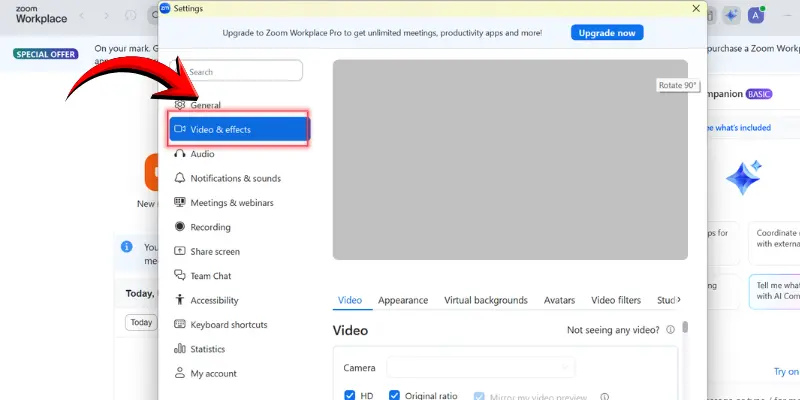
If you’re satisfied with the preview, you’re ready for the meeting. If not, troubleshoot or adjust settings as needed.
2. Test Webcam Using Our Free Online Tool
If you want a more detailed webcam check, you can use our free online webcam test tool. It’s quick, easy, and doesn’t require any downloads or installations:
- Open the Webcam Test Tool on our website.
- Click “Test My Camera”.
- Allow camera access when prompted.
- Instantly, you’ll see a live preview of your webcam with additional information like video resolution, frame rate, and more.
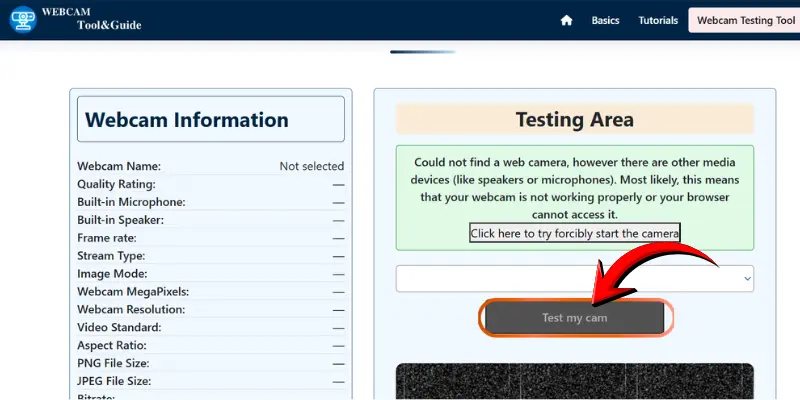
If your webcam isn’t working, the tool will guide you through troubleshooting steps.
Troubleshooting Common Webcam Issues
Even after testing your webcam, things can sometimes still go wrong. Here are a few common issues you might face and how to fix them:
- No Video Feed: If your webcam isn’t showing any video, make sure it’s properly connected to your device. Check that your webcam drivers are up-to-date and ensure the correct camera is selected in Zoom settings under Settings > Video.
- Blurry Video: If the video is blurry, try cleaning your webcam lens. If the problem continues, ensure your camera supports high-definition video. You may also want to adjust the video settings in Zoom to improve clarity.
- Audio Issues: If your microphone isn’t working or the audio is distorted, make sure your microphone is correctly selected in Zoom Settings > Audio. Also, verify that your audio input and output devices are properly configured.
If your webcam still isn’t working, see our detailed guide for step-by-step solutions.
Tips for Better Zoom Video Quality
To make sure you’re looking and sounding your best on your next Zoom call, here are some helpful tips:
- Sit facing a natural light source or use a desk lamp for better lighting.
- Clean your webcam lens regularly to avoid blurry video.
- Keep your webcam at eye level for a natural and professional angle.
- Enable HD in Zoom settings (Settings > Video) for sharper video.
- Keep your background simple or use a virtual background to reduce distractions.
- Close apps that use your camera or bandwidth to improve video performance.
- Ensure a stable internet connection to prevent lag and frozen video.
- Test your video before the meeting to adjust lighting and angle as needed.
Conclusion
Testing your webcam before a Zoom meeting is a simple but essential step to make sure your call goes smoothly. By preventing technical glitches, improving video quality, and boosting your confidence, you can make a lasting professional impression.
Whether you’re using Zoom’s built-in settings or a free online tool, taking a few minutes to check your camera can save you time and frustration. Plus, following the tips for better video quality can enhance your virtual meetings even further.
So, don’t skip the webcam check—make sure you’re ready to shine in your next Zoom call!
Frequently Asked Questions (FAQs)
Here are the answers to some common questions about how to test the webcam before a Zoom meeting:
Yes, you can use our online webcam test tool. It works directly in your browser and requires no installation. You can see a live camera preview instantly.
Yes, a slow connection can cause lag and freezing. HD video needs a stable bandwidth. A strong network improves both video and audio quality.
This could be because Zoom isn’t using the correct camera. Go to Zoom’s Settings > Video and select the right camera. Restarting Zoom or updating the app can also resolve the issue.
Yes, you can use your phone’s camera as a webcam by downloading a webcam app. These apps allow you to connect your phone to your computer through Wi-Fi or USB. Follow the app’s instructions to set it up for Zoom meetings.
Set your webcam at eye level to avoid looking down or up at the camera. This makes your video look more professional and helps keep you engaged with the conversation. Plus, it’s more attractive!



- Be Respectful
- Stay Relevant
- Stay Positive
- True Feedback
- Encourage Discussion
- Avoid Spamming
- No Fake News
- Don't Copy-Paste
- No Personal Attacks
- Be Respectful
- Stay Relevant
- Stay Positive
- True Feedback
- Encourage Discussion
- Avoid Spamming
- No Fake News
- Don't Copy-Paste
- No Personal Attacks
