Webcam Not Working on Zoom? Here’s How to Solve It
Published: 29 Mar 2026
It can be frustrating when your webcam is not working on Zoom, especially during an important class, job interview, or client meeting. You try turning the camera on, but nothing happens, and the pressure keeps building. This is a common issue, but the good news is that it is usually easy to fix.
In this guide, we will show you 15 simple steps to fix your Zoom webcam and share a few useful tips to help you avoid the same problem in the future. So, let’s get started.
Why Is Your Webcam Not Working on Zoom?
Before trying the fixes, it is important to understand what may be causing the problem. There can be several reasons why your webcam is not working on Zoom:
- Camera Permissions: Sometimes, Zoom does not have permission to access your camera, so the video does not start.
- Wrong Camera Selected: If your device has more than one camera, Zoom may be using the wrong one.
- Other Apps Using the Camera: Apps like Teams, Skype, Discord, or even your device’s Camera app may already be using the webcam.
- Outdated Zoom or System Software: An old Zoom version, browser, operating system, or webcam driver can also create camera issues.
- External Webcam Connection Problems: If you are using an external webcam, a loose cable or faulty USB connection may stop it from working properly.
- Privacy Settings or Hardware Blocks: Some laptops have privacy shutters, webcam keys, or built-in settings that can block the camera.
- Black Screen Issues: In some cases, Zoom may detect the camera, but the screen still appears black because of graphics, security, or software conflicts.
How to Fix Zoom Camera Not Working: Step-by-Step Solutions
Below are 15 practical solutions. Go through them in order. Many users fix the issue in the first few steps.
Step 1: Restart Zoom Completely
Start with the simplest fix. Close Zoom completely, not just the meeting window, and then open it again. Sometimes Zoom gets stuck due to a small glitch, and restarting the app helps it reconnect to your webcam properly.
Step 2: Restart Your Device
If restarting Zoom doesn’t help, restart your laptop, PC, or phone. This clears background processes and removes temporary issues. Sometimes another hidden app is using the camera, and a restart releases it.
Step 3: Check the Selected Camera in Zoom
If your device has more than one camera, Zoom may be using the wrong one. This can cause a black screen or no video. You can fix this by choosing the correct camera in Zoom settings.
- Open the Zoom app.
- Click the Settings (gear icon).
- Go to the Video section.
- Find the Camera option.
- Switch between the available cameras.
- Select the one where your preview appears clearly.
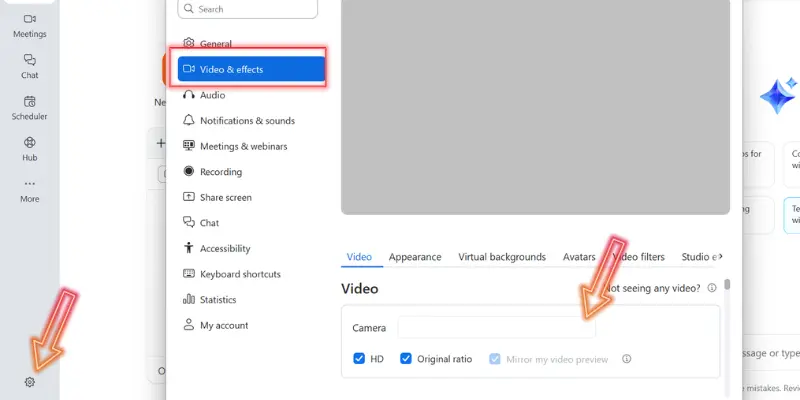
Once the correct camera is selected, your video should start working properly.
Step 4: Allow Camera Access for Zoom
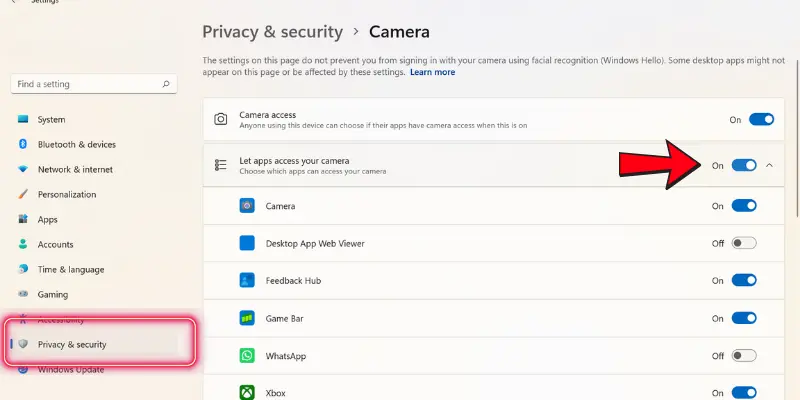
If Zoom does not have permission to use your camera, your video will not work. Make sure camera access is enabled on your device.
On Windows & Mac:
- Open Settings / System Settings
- Go to Privacy & Security → Camera.
- Turn on camera access.
- Make sure Zoom is allowed to use the camera.
On Mobile (Android & iPhone):
- Open Settings.
- Go to Apps / App Permissions.
- Tap on Zoom.
- Open Permissions → Camera.
- Select Allow.
After enabling permission, reopen Zoom and check your camera again.
Step 5: Close Other Apps Using the Camera
If another app is already using your webcam, Zoom may not be able to access it. This is a common reason why your camera does not work in Zoom.
- Close apps like Skype, Microsoft Teams, Discord, or Google Meet.
- Close any browser tabs that are using the camera.
- Also, close the default Camera app on your device.
After closing these apps, open Zoom again and check if your camera is working.
Step 6: Test Your Camera in Zoom Settings
Go to Zoom video settings and check the preview window. If you can see yourself, your camera is working fine. If the screen is black or blank, continue with the next steps.
Step 7: Reconnect Your External Webcam
If you are using an external webcam, unplug it and plug it back in. Try a different USB port if needed. A loose connection can prevent the camera from working properly.
Step 8: Check for Camera Block or Privacy Shutter
Some laptops have a privacy shutter, a physical switch, or a keyboard shortcut that can disable the camera. Make sure the lens isn’t covered, and the camera is turned on.
- Check the lens for any cover or slider.
- Press the camera toggle key if available.
After unblocking, reopen Zoom and test your video.
Step 9: Update the Zoom App
Using an outdated version of Zoom can cause camera problems, glitches, or compatibility issues with your device. Updating the app ensures you have the latest fixes and improvements for smooth video performance.
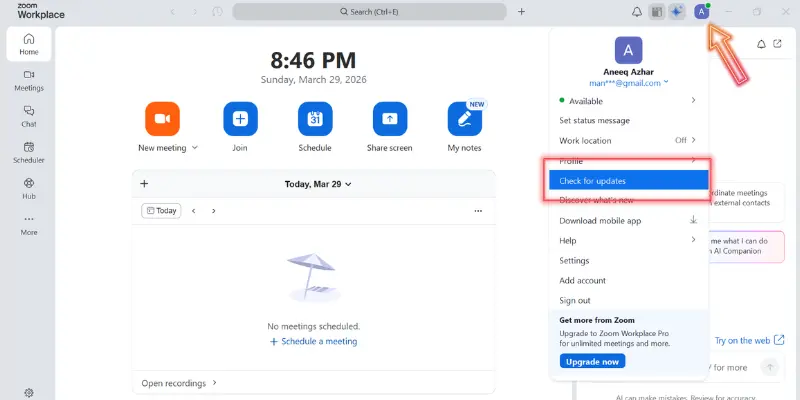
On Computer (Windows & Mac):
- Open Zoom → Go to Profile Picture → Check for Updates.
- If an update is available, download and install it.
- Restart Zoom and test your camera.
On Mobile (Android & iPhone):
- Open Google Play Store (Android) or App Store (iPhone).
- Search for Zoom → tap Update if available.
- After updating, reopen the app and check your video.
Keeping Zoom updated often solves camera issues without any other changes.
Step 10: Update Your System
Sometimes your operating system may be outdated, causing Zoom camera issues. Keeping your system updated ensures better compatibility and fixes bugs.
On Windows:
- Go to Settings → Update & Security → Windows Update.
- Click Check for updates and install any available updates.
On Mac:
- Open System Preferences → Software Update
- Install any updates and restart your Mac.
On Mobile (Android & iPhone):
- Go to Settings → System / General → Software Update
- Download and install updates, then restart your device.
After updating, reopen Zoom and test your camera to see if the problem is resolved.
Step 11: Check the Camera in Another App
Open your webcam in another app to test it.
- If it doesn’t work anywhere, the issue may be with your device or hardware.
- If it works in other apps, the problem is likely with Zoom.
This step helps you identify the real cause.
Step 12: Use the Zoom Desktop App Instead of the Browser
If your camera isn’t working while using Zoom in a browser, switch to the Zoom desktop app. The desktop app is more stable, has fewer permission restrictions, and usually fixes issues caused by browser settings or extensions.
- Download and install the Zoom desktop app from the official Zoom website.
- Open the app and sign in.
- Join your meeting and check if the camera works.
Using the desktop app often resolves camera problems that appear only in the browser.
Step 13: Check Browser Camera Permissions
If you are using Zoom in a browser, the camera may not work if access is blocked. Make sure your browser allows Zoom to use the camera.
On Google Chrome:
- Click ⋮ (three dots) → Settings→Privacy & Security → Site Settings → Camera. Find Zoom in the list and set it to Allow
On Safari:
- Go to Preferences → Websites → Camera → Find Zoom → Select Allow. This gives Zoom access to your Mac’s camera in the browser.
After this, join your Zoom meeting again and check if your camera is working properly.
Step 14: Check Antivirus or Security Settings
Some antivirus or security tools block camera access. Open your antivirus settings and check if Zoom is blocked. If yes, allow it and restart Zoom.
Step 15: Reinstall Zoom
If none of the above steps work, uninstall Zoom and install it again. This can fix broken settings or corrupted files and often solves the issue.
Preventing Future Zoom Camera Problems
Once your webcam is working, follow these steps to prevent issues from returning:
- Keep Zoom Updated: Always use the latest Zoom version to reduce bugs and compatibility problems.
- Test Your Camera Before Important Calls: Use our Webcam Test Tool on this website for a quick check before classes, interviews, or meetings.
- Close Other Video Apps: Shut down apps like Skype, Teams, or browser video tabs before opening Zoom to avoid conflicts.
- Review Permissions After Updates: Major OS updates can reset privacy settings. Check camera permissions for Zoom after updates.
- Use the Desktop App When Possible: Desktop Zoom is more stable and avoids extra browser permission issues, making it safer for important meetings.
- Secure External Webcam Connections: Ensure cables are properly connected and avoid low-quality USB hubs to prevent hardware-related camera failures.
Conclusion
Fixing a Zoom webcam issue may feel frustrating, but most problems can be solved with simple steps like checking permissions, selecting the right camera, or restarting your device. By following this guide step by step, you can quickly fix the issue and keep your meetings running smoothly. To avoid future problems, keep Zoom updated and test your camera before important calls.
If this guide helped you, share it with others or explore more helpful tips on our website.
Frequently Asked Questions (FAQs)
Here are answers to some of the most commonly asked questions about webcam is not working on Zoom:
If your camera works in other apps, the issue is usually with Zoom settings or permissions. Check that Zoom has access to your camera and that the correct camera is selected. Restarting Zoom often solves this problem quickly.
Go to your device settings and check camera permissions. Make sure Zoom is allowed to use the camera. On mobile, also check app permissions under Zoom.
Restart Zoom and your laptop first. Check permissions, select the correct camera, and close other apps using the camera. Update Zoom and your system if the problem persists.
Mobile camera issues usually happen because Zoom doesn’t have permission, the app is outdated, or another app is using the camera. Check camera permissions in settings, update the Zoom app, and restart your device.
Zoom has a built-in Test Video feature in its settings. Open Zoom → Settings → Video → Check your preview. You can also use our Webcam Test Tool on this website for a quick check to make sure your camera is working properly before joining any meeting.


- Be Respectful
- Stay Relevant
- Stay Positive
- True Feedback
- Encourage Discussion
- Avoid Spamming
- No Fake News
- Don't Copy-Paste
- No Personal Attacks
- Be Respectful
- Stay Relevant
- Stay Positive
- True Feedback
- Encourage Discussion
- Avoid Spamming
- No Fake News
- Don't Copy-Paste
- No Personal Attacks
